I rode this closed road Sportive. Got a late start (Green 6 for those who rode it as well) so was pretty well at the back from the off with probably 13-14,000 people in front of me. Here's my Strava record - link.
My Official time was 6:04. I'd hoped for a sub 6:00 but was held up at ~mile 21-22 by an accident. It transpired that the rider injured died of his injuries which rather puts things in perspective. Here's a video of various parts of the ride (the start, just before feed station 1, Coventry and the final 4-5 miles)
All in a good event. Still issues where they put the feed/rider stops on narrow roads causing queues while people who don't want to stop get stuck, and the start/finish lines were not as favourable to Birmingham as the previous Broad Street location used last year, but there is still something about closed road events that make it worth the cost (in my opinion anyway)
Here's a couple of picturesfrom the event:
And here's me and my son in the green Garmin top (who snuck and and joined with ~25 miles to go) at the finish
This is a page as to how to install, set up and use my Strava Data Extraction Tool. First get the installer files from here. Extract the files from the zip file and you should see these files:
Double click on Setup and the application should install correctly. It might even auto run - I have had inconsistent behaviour with this. Also for some reason the application is called "Strava Forms V2.exe":
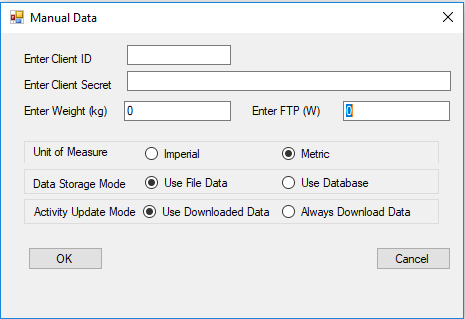
I say "for some reason" but obviously I have not packaged it correctly. You could create a shortcut for this t make it easier if you wish The program uses an old fashioned .ini file for configuration data. If this is not present (it won't be for the first time its run) it will open the configuration dialog box as follows:
You will need to enter the Client ID (use application identifier) and the client secret as a minimum. The application will check if you have not and keep the window open. This is also the case for the Weight and FTP entry boxes The check boxes need not be altered if required. These settings are as follows:
Unit of measure - default is metric, can be changed to imperial (statute). Note this is effectively a one-off setting and I don't think (I have not tested) that once the application is running it swaps between the 2 as required. This is a future development, it might work for database mode but definitely not file mode
Data Storage mode - default is File based data, can select Database (SQL). I would recommend Database mode as I have done more work with this option and will do more development using the database
Activity Update Mode - can save bandwidth and time - Use downloaded data means if that data already has been downloaded it will use this data, else it will re-download the data again.
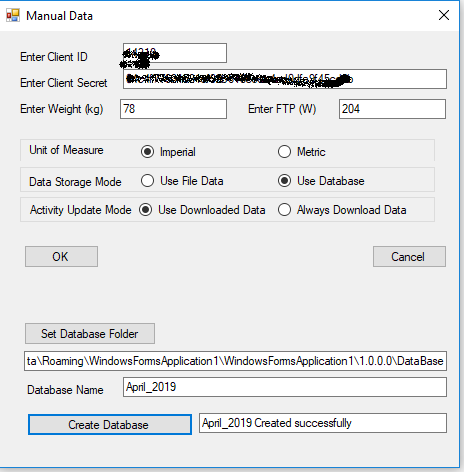
If you select "Use database" the dialog box will increase in size and options to create a database will appear:
Here you must select a folder and specify a name for the database (note please do not add any file extension, just a name) as follows:
Then select "Create Database" and all being well you will see this:
Once you press "OK" the application has enough configuration to start. It will initially try and Authenticate and you will see the following:
Note the Access mode is selected as "activity:read_all". This is the default option and will not allow you to read activity data if this is not selected. The application will connect to the Strava authentication process immediately and all being well a web browser window will open which you need to accept (or not):
Press Authorize and hopefully the the web browser window should automatically change to something like the following:
This is part of the returned authentication data and shows the current access token (there is other data returned that I did not show). It is this code that will allow access for the next 6 hours. The status bar data updates and will now look something like:
You will see that Athlete data has been obtained and displayed. The status bar now shows when the current token will expire, how long is left and that fact that it is authenticated. In theory, before the 6 hours is up it will re-authenticate itself automatically. This is not tested. The application data folder is set automatically by the installation and is in a place almost impossible to find. There is quite a lot of benefit to opening this folder so the application will open it for you on demand:
The "Show Data Option" will open the folder. The other options will be described later.
Note that the application does quite a lot of automatic information and error tracing. This is a file per session called "Traceoutput_YYY-MM-DD_hh_mm_ss.txt" and is created in the Data Folder. These can be useful in the event of issues. These can get quite big.
The next step is to download the Activity Data - this is the summary data about all the activities that have been uploaded to Strava between 2 dates. The default start date is an arbitrary 1 June 2018 and the end date is today's date. These are standard Date Pickers so can be changed.
Select the start and end dates of your choice:
And then press the "Update" button. Depending on the number of activities it will take some time to get and process the data. The application is unresponsive during this period and it cannot be stopped. Once the data is downloaded and processed you will see something like the following:
There will be a graphical display of ride count, distance, elevation and activity duration against date. This is also tabulated and a summary of the distance on each bike is also presented. Note that this is only the summary data of the activity - NOT the time based data recorded during the activity. To get this select the tab "All Ride Activities (nnnn rides)". nnnn will depend on how many rides you have uploaded:
This will show the summary data for each ride (newest first). Black text is that none of the time based data has been downloaded, blue text shows that time base data has been downloaded to the database and red text shows that time base data has been downloaded to a data file. To get the time based data select the left most empty column next to the activity for which you want the data and double click:
This will down load the data for this activity and it will be shown in the other tabs. The raw data is shown in a textual format in the "Ride Activity Data ID:xxxxxx" tab:
More detailed statistical analysis of the data is shown in the "Ride Activity Stats ID:xxxx" tab:
The data is presented graphically in the "Ride Activity Graph ID:xxxx" tab:
Histogram data is presented in the "Histogram" tab:
It is possible to automatically download the time based data for all activities. From the menu Bar select the Tools menu and select "Download All Activity Data". This will the download all the time based data and process the statistics. Note - this is slow - you can expect an hour or more if you have many 100's of activities. There is a progress indicator and the application is partially responsive during this task:
Note that bandwith/number of requests is limited for this sort of Application. I have not implemented code to check this and ensure that it pauses when the limit is approached. However in my experience I can set the application to download all the data and it will not fall over by hitting this limit. You can review the rate on your Strava "My Application" page from the settings page:
Note that there is a LOT of data needing to be stored when you select the option to download all the data. The application reads the raw data, which it stores and it also writes the imperial and metric data in the database as well (to save time when viewing the data). I have ~1500 activities and the SQL data base is ~1Gbyte in size to store this, so please be aware.
There is an option from Tools Menu to view the database size:
You can also remove all the data from the database using the "Delete All Rows" button - use at your peril as you'll have to download it again! MORE TO FOLLOW
A post Easter Weekend saw the opportunity to attempt Llanberis Pass (#189 in Another 100 Great Cycling Climbs) I was staying in Caenarfon and was able to leave reasonably early on a Sunday Morning - this meant that traffic was light. However the weather was not great and I think this kept the traffic level low. I could imagine at other times that traffic could be heavier making it a less pleasant climb It is a fairly steady climb - only a brief peak of ~10% just below the Youth Hostel at the top of the pass at Pen-y-Pass Here's a video starting from Nant Peris:
The latest versin is here: Strava Tool V3 Please use this version
Update - now authenticates programmatically
As per the previous post I have now included programmatic Strava Authentication for the application to take account of the October 15, 2019 change where "Forever tokens are rejected by the server. Old OAuth endpoints for obtaining forever tokens are removed." I have been using a "Forever Token" up to this point. The new version can be downloaded from here
Some other changes have been made. Some bugs have been fixed and I am sure some other bugs will have been introduced. I do use the application myself and its not broken anything yet...
Please, if you use the software use the comment section to let me know what you saw. Add the Traceoutput files (in the application folder) to the message At this moment there is no documentation for this version - this will follow soon See the new Authentication data at the bottom of the application main window:
Note: this page was started 7 April 2019 and has been updated 22 April.
This latest update is to confirm that this code gets the correct access and refresh tokens which, when used to connect to Strava, will get data according to the Scope selected.
I was getting a "401" error when trying to get Activity data. However this was because I was using Scope: read_all which reads "private routes, private segments, and private events for the user". I.e. it does not read Activities for which you need: Scope: activity:read_all "which is the same access as activity:read (i.e. read the user's activity data for activities that are visible to Everyone and Followers, excluding privacy zone data), plus privacy zone data and access to read the user's activities with visibility set to Only You"
This means that this code is a functional (if inelegant, badly written, poorly documented etc) route to get the access tokens needed from October 2019
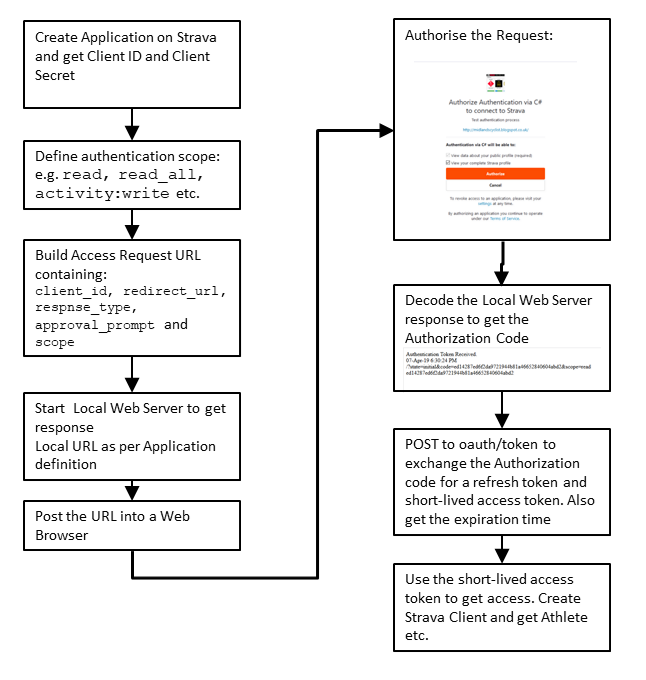
The Windows PC programme I have written in C# to get my data from Strava and display and analyse in a variety of ways (latest Blog post here: link) has a relatively major failing - that is that it is necessary to manually go through a number of rather non-intuitive steps to get a Strava Access Token. Although its not elegant it was a one-off task until this year. In October 2019 the Strava Authentication method is changing from a non-expiring token (as per my application when I created it) to a time limited token process which then involves re-authenticating every 6 hours. This is described here: link Whilst my application will continue to work (for me) until Oct 2019, using my original non-expiring token, at this point I will need to move to the new process of this time limited token exchange. Anyone wanting to use my application now and follow the process I have documented in the blog will find that they they probably can manually get a token using a similar process it will be a pain and then that token will expire 6 hours later. Therefore to address this I have started to develop a proper authentication solution as I have no choice. I approached this by writing a separate application to test the process and methodology, and then once I had a working system integrate into my original application. I also created a separate Strava account to test this with rather than risk corrupting my current account access and losing my data (more on this later). As before I created (in my new account) an application and registered it. This is documented here: link and here: link I then spent some time reading the documentation to see how it worked. I also manually typed in the html code/links directly into a browser to look at the response so I understood what you needed to send and what answer you got back This a simplified flow diagram of how I believe it works:
There are some prerequisites -like needing a local web server running on your PC to receive the initial Authorisation code
I found a usable sample here: Simple C# Web Server. I don't understand how it works - all I know is that it does. Start the Web server before opening the web page, close it once you have a response. Note that this will open a web page and show the response rather than silently interpreting the reply. This "waiting for a response" behaviour here also caused issues. We need to await the user authorising the Strava Request - at this point we are no longer in a pure Synchronous programming mode.
To address this I have user a timer to await the web server responding - this loops until either a timeout is reached or a successful authentication is achieved. I tried to use async and await but could not get this to work - I need to do more research and some other programme examples. Once we have the response from the Web server we can post to the Strava oauth link and get the short term access codes. I believe that I have created a robust piece of code that does all of that and I wrote this in a small test application:
This application robustly returns codes and an expiry time. Initial testing in the main Strava application however got a "404 not authorised" response - this is where more testing is required, but as explained above has now been resolved by selecting the appropriate scope Don't bother using these tokens as they are already expired!
The source code is here: Source Code. In theory, unzip the file, copy the contents into a folder, and using Visual Studio Open the solution "Strava_Autenticate_V3" (I could not spell "Authenticate" correctly!). Compile/build and it should run Any feedback I would welcome, especially if there is an error. Please note I am not a software developer - I am an engineer who can write software - I know there is a big difference. Again - for my poor design and coding - I am happy to receive constructive feedback
I have started a fairly simple analysis of the difference between my 4iiii Crank arm power meter and the power output from my Tacx Smart trainer. This is here: Power Measurement Comparison I found this interesting video about potential issues with strain gauged crank arm power meters:
In fact the author (presenter?) has made a number of other interesting videos about cycling technology - I first came across him via DC Rainmaker so I won't take all the credit
Quick Update 3 March 2019 I had not used my tool for a while and fired it up today only to find error messages everywhere and I could not add any data since ~19 Feb 2019. Some diagnostics showed that I had incorrectly used the wrong type of variable for the Activity ID, and clearly some time after 19 Feb this number became too large for the variable type I was using I have been through the code and I think addressed all the instances of this error, and tested it as OK. The latest release is here: V2.01
You will need to create a new database for this update to take effect - whilst I have made a lot of progress learning how to use a database, and I can create the database this program needs programmatically, I have not yet implemented changes to the live database.
The best way to create a new database is to open the application data folder (menu option). Close the application, and then in the folder rename stravaforms.ini to say stravaforms_org.ini. Then restart the application and you will be prompted to set the application up again including recreating a new database. Obviously you'll need to download all the data again as well I have been making slow progress to working out how to generate/acquire the StravaToken from within the application. There is still some way to go but I believe my application will live beyond ~August 2019 when it will lose the fixed Token